✨ New in 1.8: Murmur hears both sides of your meetings

The keyboard
was the slow part.

One hotkey, your voice, text at your cursor. Works in every Mac app, runs on your machine by default, and costs $29 once.

Download for Mac v1.8 · Free 7-day trial
Buy License, $29 One-time purchase, lifetime updates
macOS Sequoia (15) or later Apple Silicon (M-series) Enhanced on macOS Tahoe

A year of not typing, counted.

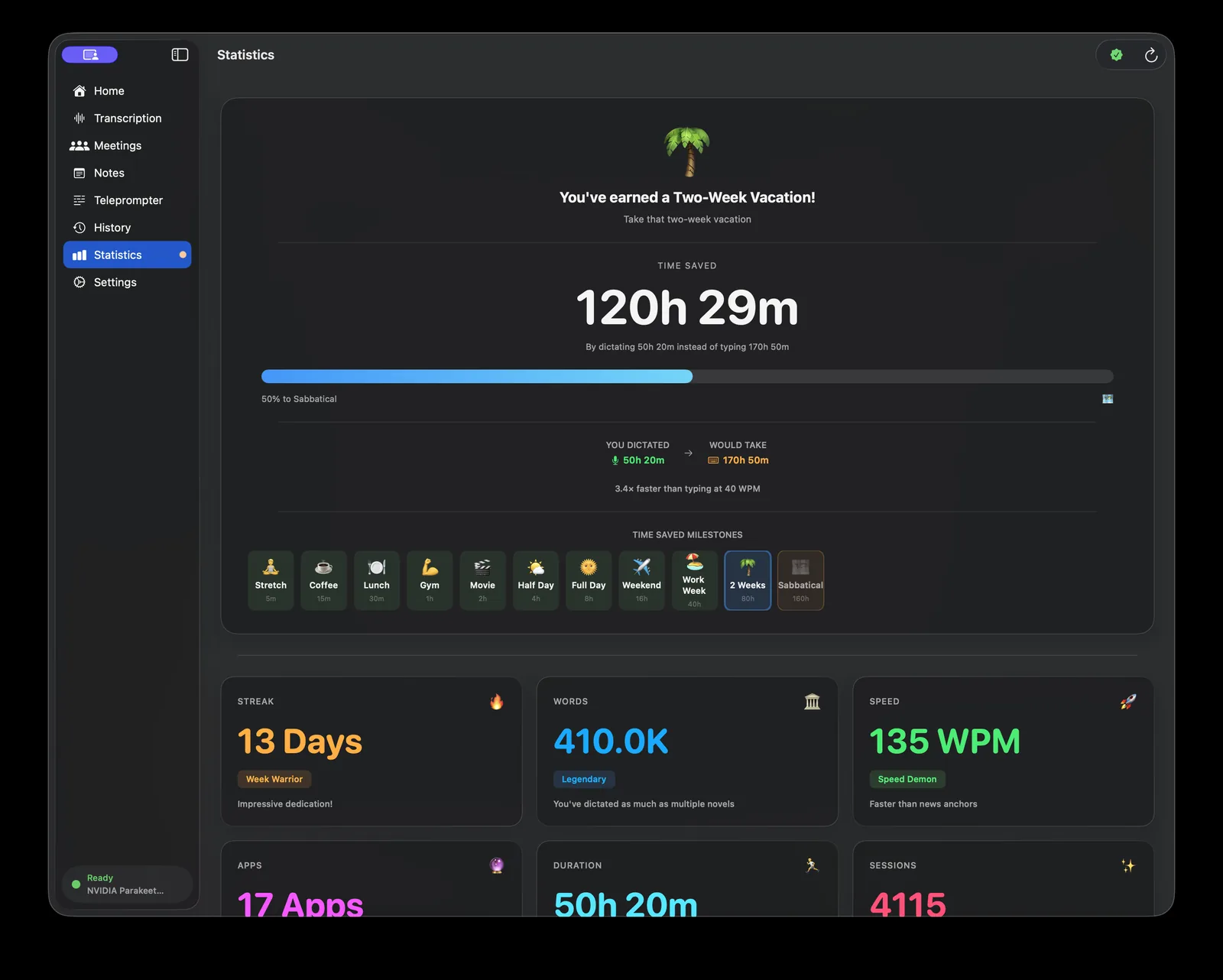
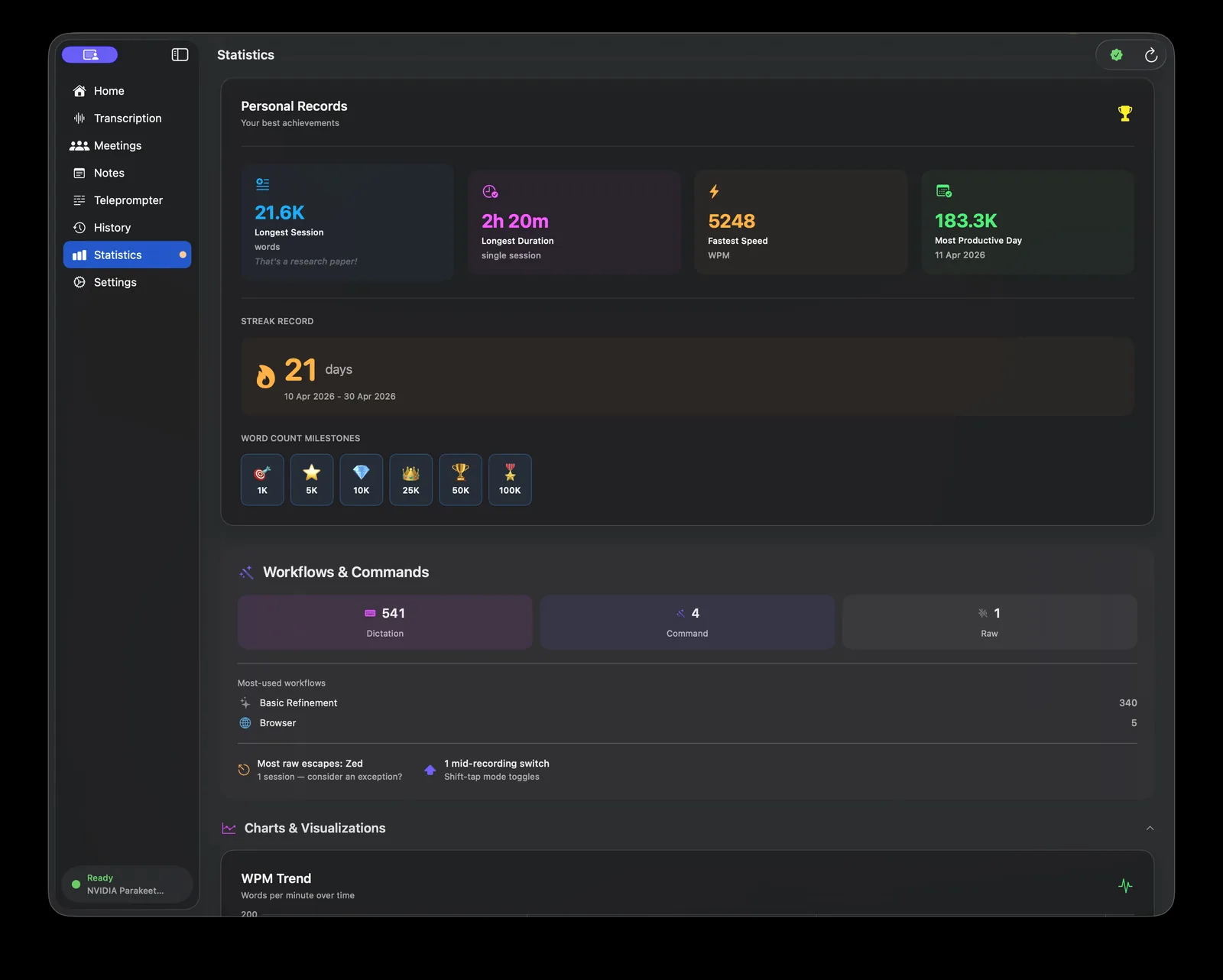
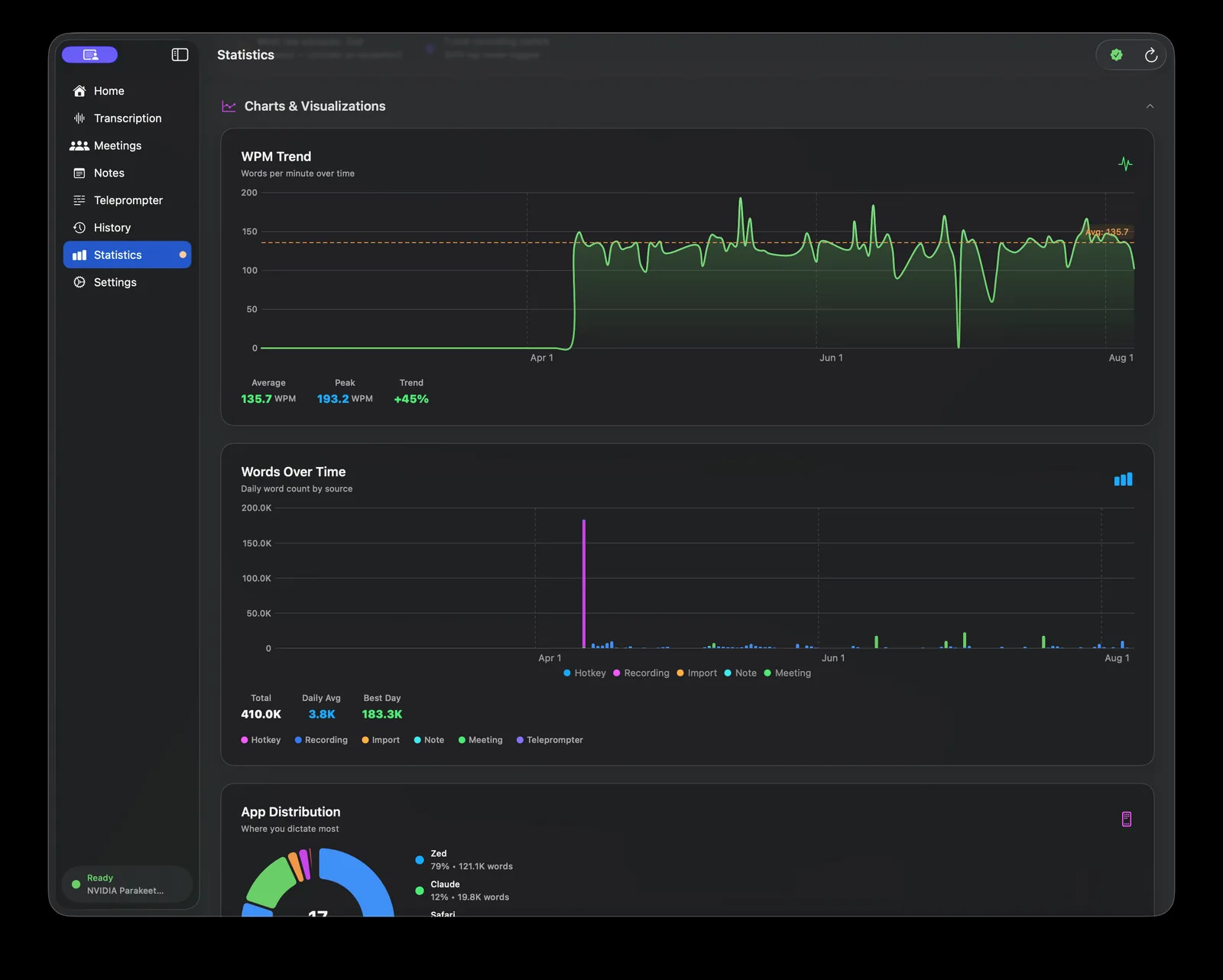
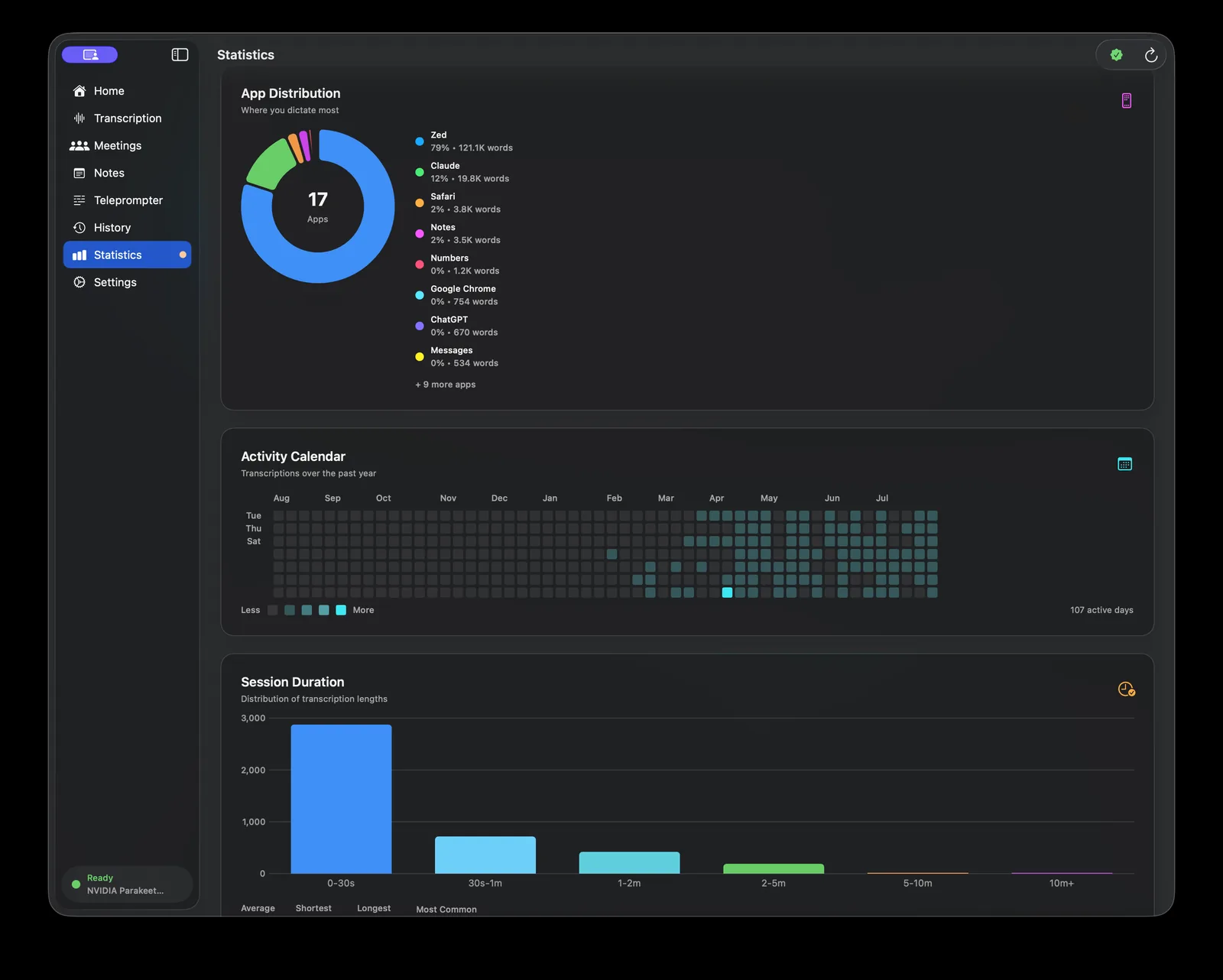
These four screens are the developer’s own usage, counted automatically by the app. No mockups, no rounded-up numbers.

Murmur's statistics dashboard showing 120 hours saved by dictating instead of typing and 410,000 words spoken, alongside milestone badges, a streak counter, and an average words-per-minute figure.
These are the developer’s own numbers, straight from his Mac.
Murmur's personal records screen showing the longest single session, longest recording, peak words per minute, longest daily streak, and word count milestones.
Dictation, lightly gamified. Also real, which is the embarrassing part.
Murmur charts showing a words-per-minute trend across months and daily word counts broken down by source.
Speed and volume over a year. No spreadsheet, no setup.
Murmur's activity calendar heatmap covering a year of dictation, with a chart of app distribution and a session duration histogram.
A year of talking to a laptop, and where the words ended up.

Three seconds, start to pasted.

Press, speak, release. The words are already where you were looking.

1

Hit your shortcut

Pick any key combo. Murmur starts recording instantly, wherever you are.

2

Speak

Words appear in real time as you talk. No waiting, no progress bars.

3

Done

Text is pasted at your cursor automatically. Or copied to your clipboard. Your call.

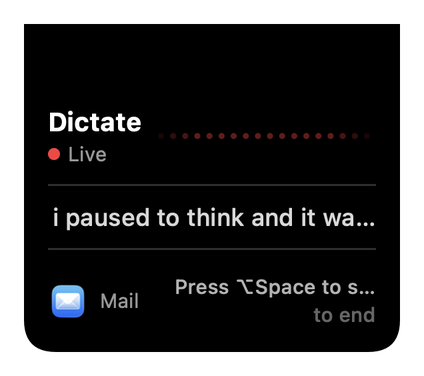
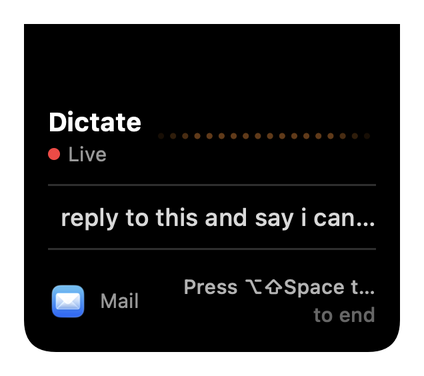
Murmur's notch indicator during recording, showing a live audio waveform, partially transcribed text appearing as the speaker talks, and the name of the app that will receive the text.
The indicator shows up before the model does, so a tap always answers.
Murmur's bottom bar indicator style, a wide pill near the bottom of the screen showing a waveform and streaming transcription text.
Prefer to watch the words arrive? Put the indicator at the bottom instead.
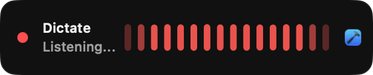
Murmur's Compact indicator style, a narrow bar showing a waveform and recording state.
Or the smallest one, a slim bar that stays out of your way entirely.
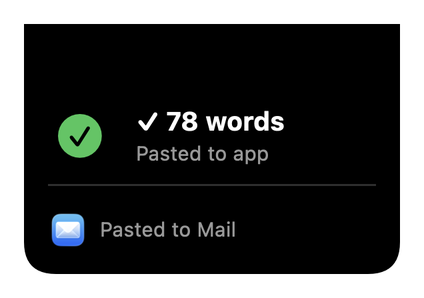
Murmur's notch indicator after a finished dictation, confirming the word count that was pasted into the target app.
And then it tells you how many words it just saved you typing.

Nothing leaves this Mac unless you send it.

Local models by default. Cloud engines take your own key, and AI cleanup ships turned off.

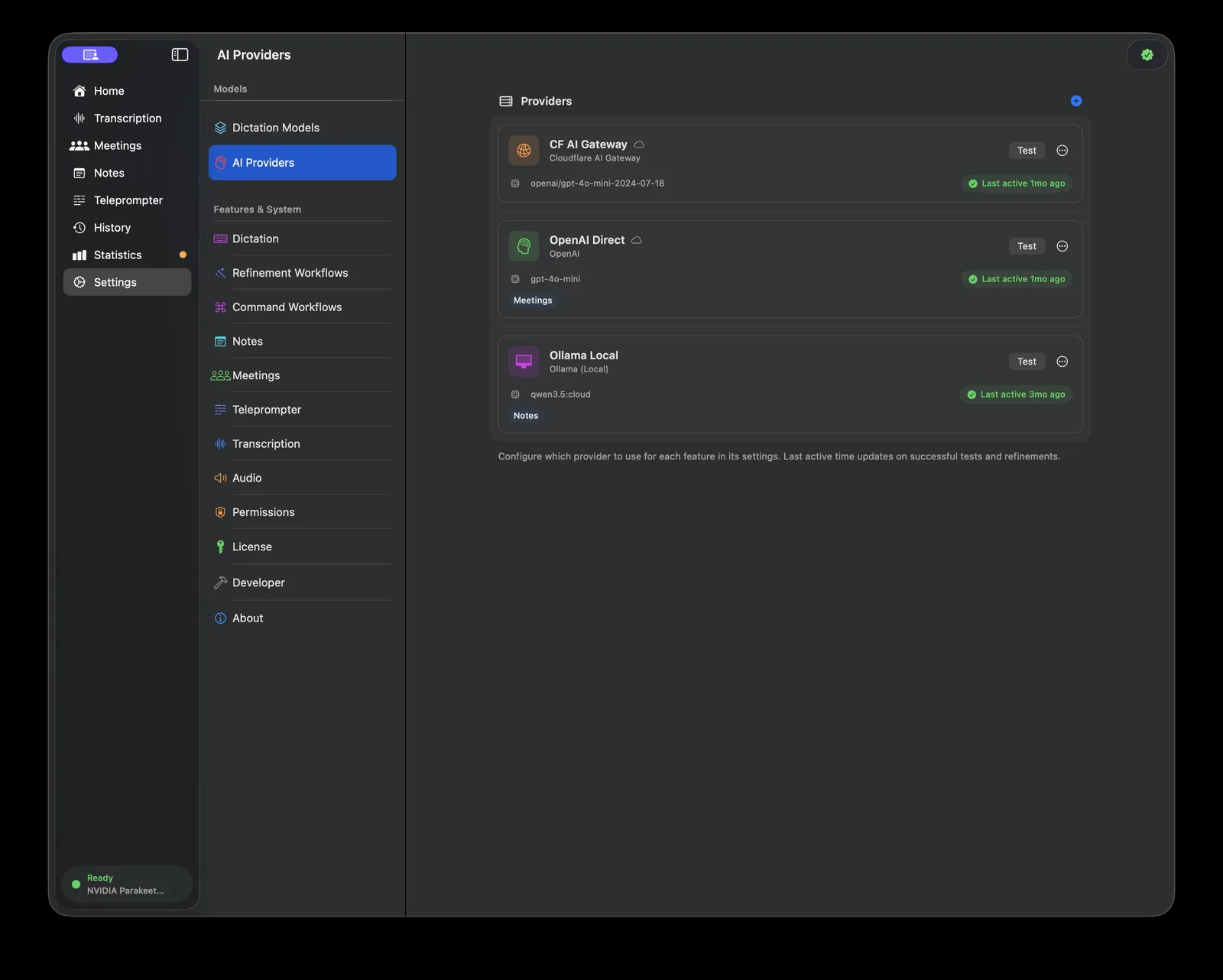
Murmur's AI Providers settings showing a local provider and a cloud provider configured separately, each assigned to specific features.
A local model and a cloud one, side by side. You decide which feature uses which.
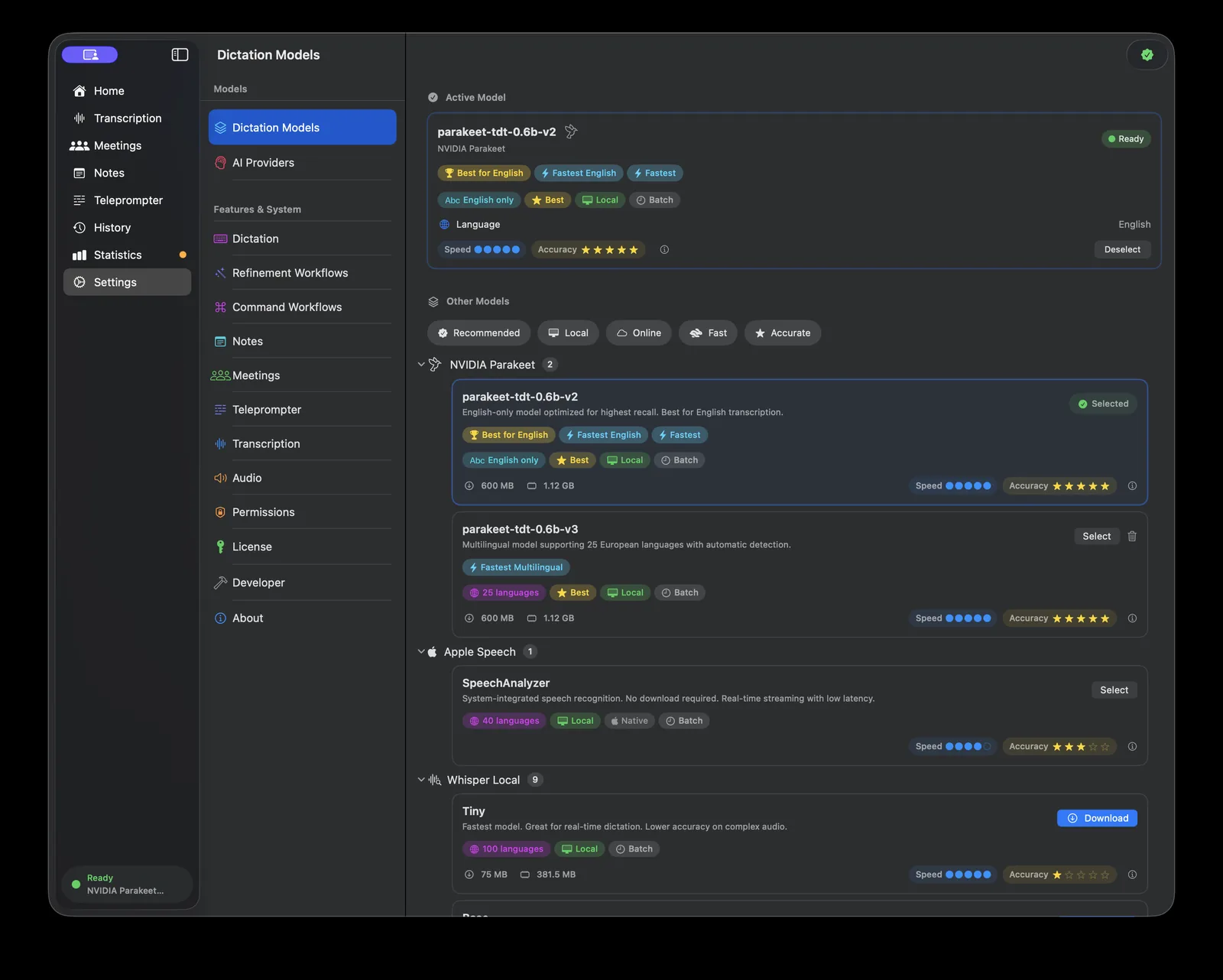
Murmur's transcription model catalog listing Whisper variants, NVIDIA Parakeet, and Apple Speech with speed and accuracy ratings and download sizes.
Thirty-odd models with real benchmarks next to them. Download only what you will use.
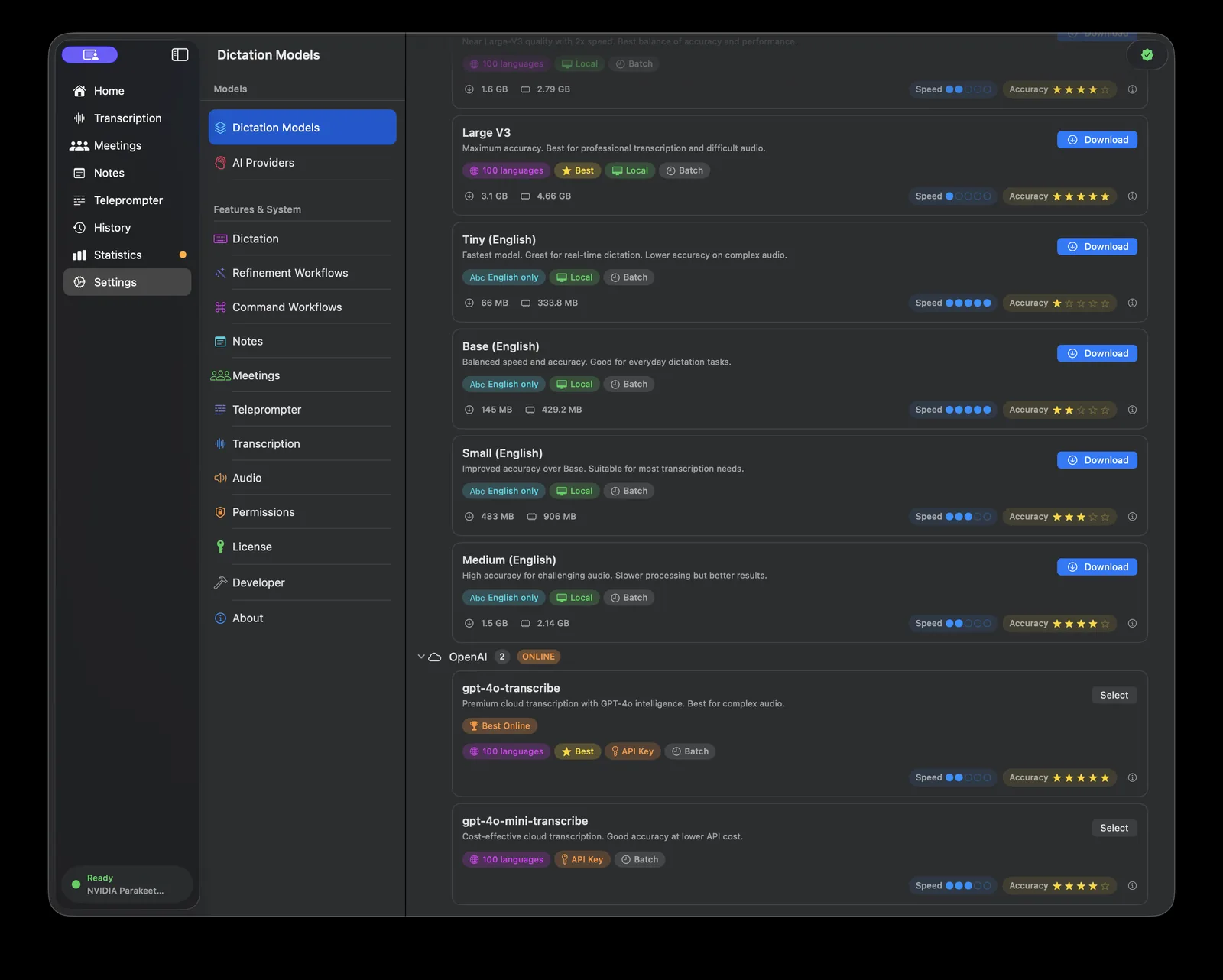
Murmur's model library listing Whisper variants and Parakeet with download sizes, memory requirements, and download state for each.
Download what you need, delete what you do not. The library tells you the real disk and memory cost.

One voice, the right words everywhere.

Workflows write for the app you’re in

Speak once, naturally. Murmur styles it to match the app under your cursor.

hey can we push the deadline to friday i need more time on the parser

  • Mail

    To: Sara · Re: Parser deadline

    Hi Sara, would it be possible to move the deadline to Friday? I need a little more time on the parser. Thank you!

    Professional

  • Slack

    hey, can we push to friday? still heads-down on the parser

    Casual

  • Xcode

    // TODO: move deadline to Friday
    //, parser needs more time

    Technical

Same sentence, dictated once. Six built-in workflows, all customizable:
  • Email
  • Messaging
  • Code
  • Notes & Documents
  • Browser
  • Catch-all

Command Mode writes it for you

A second hotkey. Describe what you want, and Murmur drafts it at your cursor.

Murmur's notch indicator in ordinary dictation mode, tinted its default accent color.
Dictating on the usual shortcut. What you say is what gets written.
Murmur's notch indicator in Command Mode, tinted a different accent color from dictation, showing a spoken instruction being captured.
Command Mode, on its own shortcut. What you say is an instruction, and Murmur writes the reply.
  • write a standup update: finished login, starting settings, no blockers

    Yesterday I wrapped up the login flow. Today I’m starting on settings. No blockers.

  • reply thanking her and ask for the updated timeline

    Thanks so much for sending this over, Maya. Could you share the updated timeline when you get a chance?

Tap Shift mid-recording to switch modes, Escape to paste raw. Read the workflows guide.

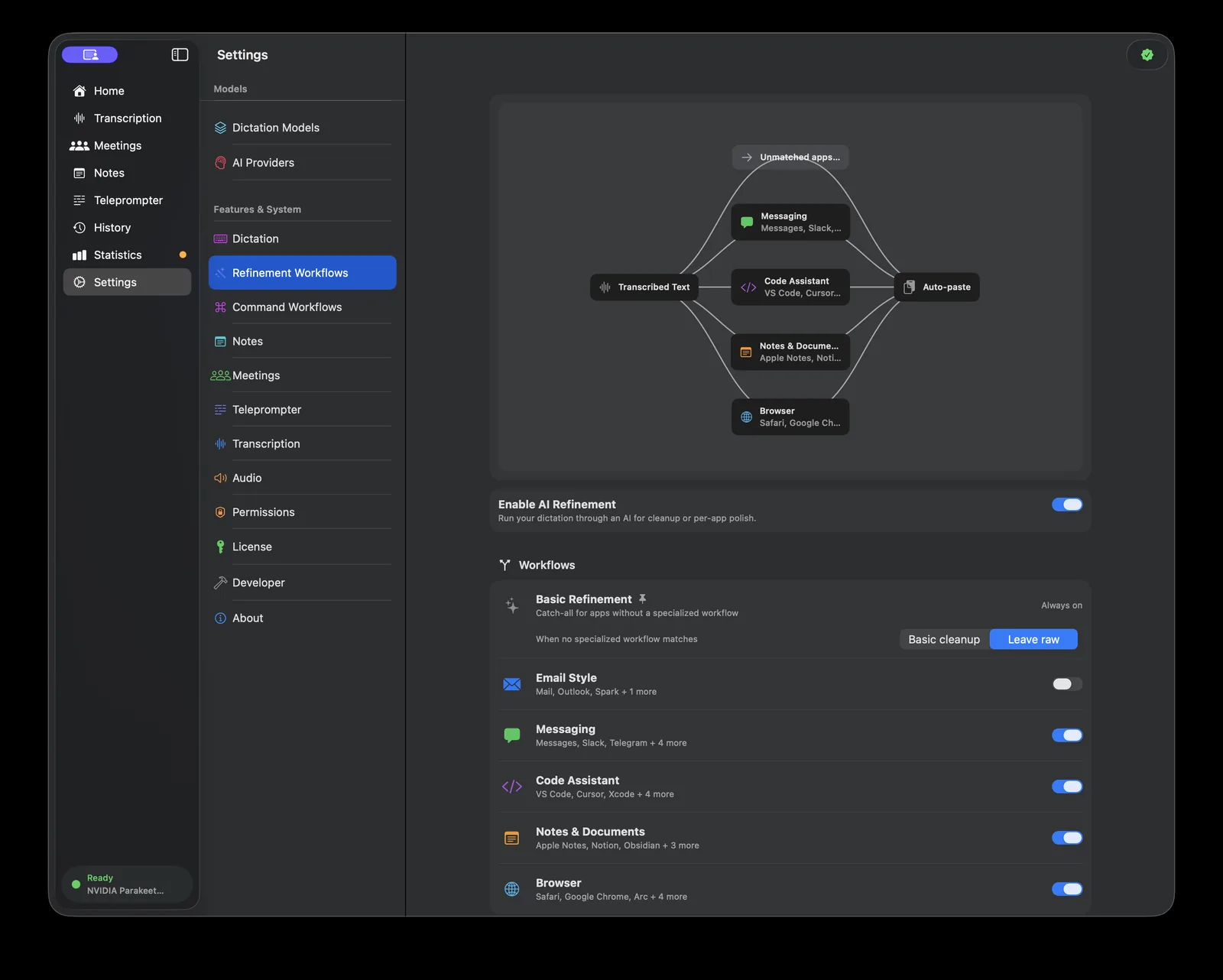
Murmur's refinement workflows settings showing transcribed text routed through messaging, code assistant, notes, and browser workflows to auto-paste, with per-workflow toggles.
Six workflows out of the box, each one editable down to the prompt.

Every meeting, written up.

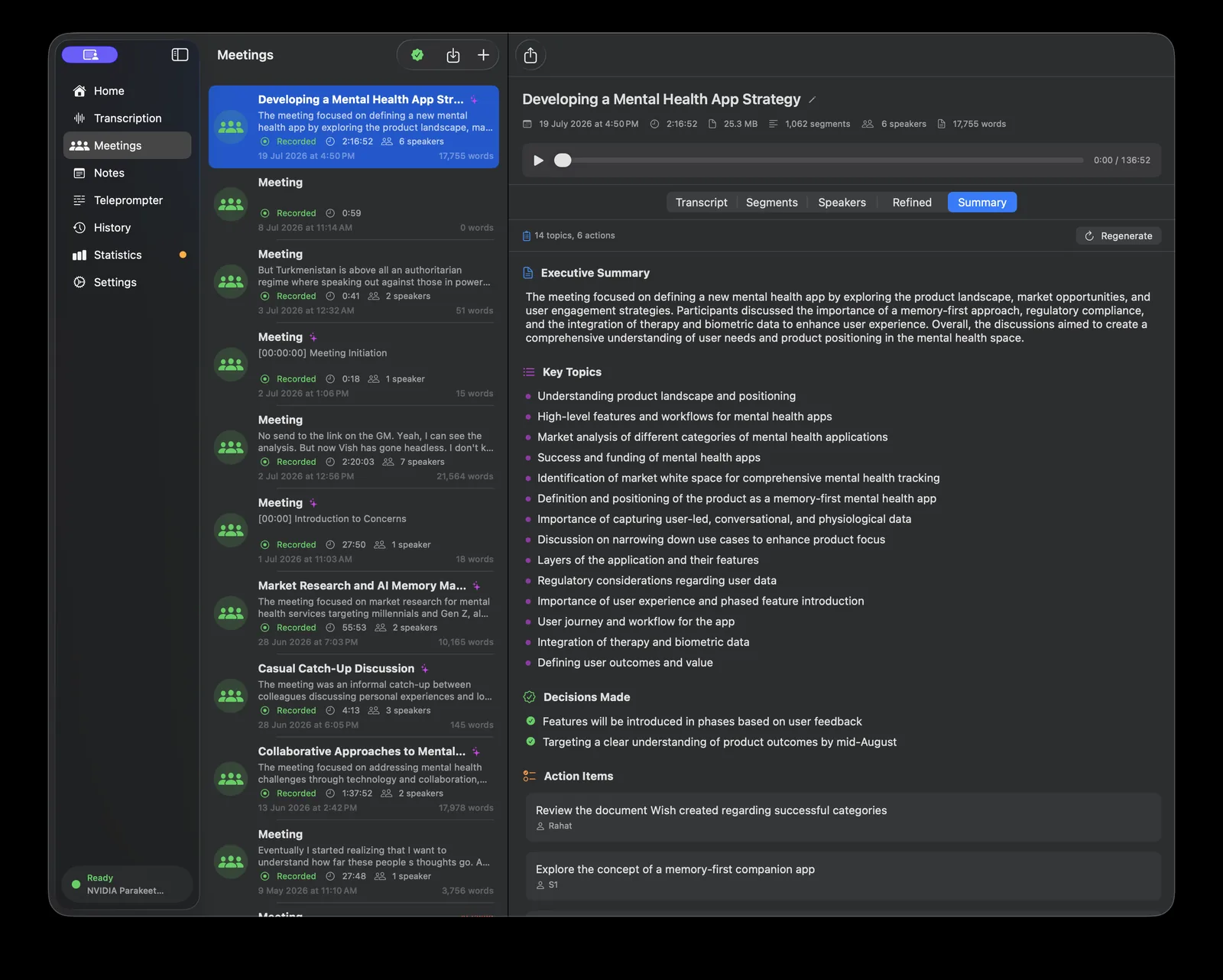
Record or import a meeting and Murmur transcribes both sides of the call with speaker labels, then writes a structured brief. Not a wall of text: distinct fields, each pulled straight from the conversation, generated on the cloud or fully on-device.

A Murmur meeting detail view showing a meeting list alongside a generated summary with an executive overview, key topics, decisions made, and assigned action items. Staged content.
Recorded, labeled by speaker, and reduced to a brief you can act on. Staged content, real interface.

Q3 Roadmap & Parser Rewrite

4 topics · 4 action items · 52 min · 4 speakers

Executive summary

The team aligned on shipping the parser rewrite before the Q3 marketing push, agreed to retire the legacy import path, and flagged a backend hiring gap that could slip the timeline.

Key topics

  • Parser rewrite scope & risk
  • Legacy import deprecation
  • Q3 launch sequencing
  • Backend hiring gap

Decisions made

  • Ship the parser rewrite before the marketing push
  • Deprecate the legacy import path next release

Action items

  • Draft the parser migration plan Maya by Friday
  • Post the backend engineer role Devin this week

Timeline

  • 00:04:12Kickoff & agenda
  • 00:18:40Parser rewrite deep-dive
  • 00:39:05Hiring & timeline risk

Open questions

  • Who owns the migration once Maya rotates off?
  • Does deprecation need a customer comms plan?

Key quote

If we don’t cut the legacy path now, we’ll be maintaining two parsers for a year.

Maya

SentimentFocused, mildly time-pressured.

Follow-upSchedule a 30-minute sync once the migration plan is drafted.

The core four come with every meeting; the rest surface when the conversation supports them, plus an auto-generated title. Ten fields in all:

  • AI title
  • Executive summary
  • Key topics
  • Decisions
  • Action items
  • Timeline
  • Key quotes
  • Open questions
  • Sentiment
  • Follow-up

Runs on OpenAI, a local Ollama model, or Cloudflare AI, your transcript only goes where you point it. Read the meetings guide.

And the rest of it.

Voice notes, file import, a teleprompter, thirty models, full history, exports.

01

Voice notes

A second hotkey for the thoughts that are not going anywhere in particular. The AI Librarian groups them by topic and person on its own.

02

File transcription

Drop in an audio or video file and get a transcript back, with the same engines and the same speaker labels as a live recording.

03

Teleprompter

Paste a script and it follows your voice from the notch while you look at the camera. Still in beta, still useful.

04

History and export

Everything you have said, searchable, with the original audio still attached. Export to plain text whenever you want it elsewhere.

05

99 languages

Switch language mid-sentence if you like. The models were trained for it and Murmur does not ask you to pick one first.

06

Statistics

Words, minutes, streaks, and hours saved, counted automatically. This is the part that turns into the section further up this page.

$29 one-time

Not $29 a month, not a card on file, not a seat. One purchase covers two of your Macs and every version that comes after this one. Seven days free to find out, no card to start.

Coming Soon

App Store

  • On-device transcription
  • 99 languages, auto-detect
  • Streaming (real-time) results
  • AI text refinement
  • Statistics dashboard
  • Copies to clipboard

Sandboxed. You paste manually.

Coming Soon

Requires an Apple Silicon (M-series) Mac and macOS 15 Sequoia or later. macOS Tahoe adds Apple SpeechAnalyzer and Liquid Glass effects.

How is this different from the dictation already built into my Mac?

Apple’s dictation is fine for a sentence. Murmur is built for the paragraph and the hour. You choose the model, so you can trade speed for accuracy instead of accepting one default. It keeps a searchable history with the original audio attached. It adapts what you said to the app you said it in, so Slack does not read like a memo. It records and transcribes whole meetings with speaker labels. And it counts what it saved you, which is how most people discover they were dictating far more than they thought.

Is Murmur always listening?

No. The microphone opens when you press your hotkey and closes when you let go or press it again, and an on-screen indicator is visible the entire time it is open. There is no wake word and no background listening. Murmur cannot start recording without a deliberate key press from you, and macOS shows its own microphone indicator on top of ours.

It is a one-time purchase. What happens if you stop working on it?

Your copy keeps working, and so does everything in it. Transcription runs on models that live on your Mac, your history is a local database you can export from at any time, and no feature is gated behind a server that could be switched off. Cloud transcription and AI cleanup are the only parts that depend on anyone else, and those run on your own API keys with your chosen provider, not through us.

Is my audio really private?

With local models, your audio stays on your Mac, fully offline using Apple's Neural Engine. Cloud models like OpenAI are also available with your own API key. Either way, you're always in control of which engine is active.

What transcription models are supported?

Murmur supports over 30 model variants. Local options include multiple Whisper models (via WhisperKit) and NVIDIA Parakeet. Apple SpeechAnalyzer is also available on macOS Tahoe. For cloud transcription, OpenAI is supported with your own API key. Each model shows benchmark data for speed and accuracy so you can make an informed choice.

Does it work offline?

Yes. Once you've downloaded a local model, Murmur works completely offline. No internet connection is needed for transcription, recording, or AI cleanup (if you use a local provider like Ollama). Cloud models naturally require an internet connection.

What languages does it support?

Murmur supports 99 languages with automatic language detection. You can also lock it to a specific language if you prefer. Auto-detection lets you switch languages mid-sentence without changing any settings.

What's the difference between App Store and Direct Download?

Both versions include the full transcription engine, 99 languages, streaming results, AI refinement, meetings, notes, and the statistics dashboard. The Direct Download version adds auto-paste (text goes straight into the active app), browser context awareness, and editor context detection. The App Store version is sandboxed, so you paste manually from the clipboard.

Can I switch between App Store and Direct Download?

No. Each version uses a different payment validation system. A purchase on the App Store cannot be used to activate the Direct Download version, and vice versa. Choose the version that fits your needs before purchasing.

Is there a free trial?

Yes. Murmur includes a 7-day free trial with full access to all features. No credit card required for the Direct Download version. The App Store version follows Apple's standard trial and purchase flow.

What about meetings?

Murmur can record entire meetings, transcribe them with speaker diarization, and generate structured AI summaries, an executive overview, key topics, decisions, action items, a timeline, key quotes, and open questions. Meetings are recorded in 5-minute chunks so nothing is lost if something goes wrong. A menu bar indicator shows recording status. You can also import existing audio or video files for transcription.

What is the Teleprompter?

The Teleprompter (currently in beta) lets you paste a script and read it while Murmur follows along with your voice. It has three modes: live tracking highlights words in real time, voice-activated scrolls while you speak and pauses when you stop, and auto-scroll moves at a fixed pace. You can choose from multiple speech engines depending on the latency you need.

How do voice notes work?

Voice notes use a separate hotkey from dictation. Press it, speak your thought, and it's saved with audio playback and optional AI refinement. Over time, the AI Librarian builds a running summary of your entire notes collection, tracking recurring topics, people, and projects across all your notes.

What export formats are available?

You can export transcriptions as SRT (for subtitles), WebVTT (for web video), or timestamped plain text. Meeting transcripts include speaker labels in exports. You can also play back any recording directly in Murmur with seek and speed control from 0.5x to 2x.

How does context-aware AI work?

When enabled, Murmur detects what app you're using and adjusts AI refinement accordingly. It recognizes browsers, code editors, email clients, terminals, and more. It can read window titles and browser URLs for additional context. For example, dictating in VS Code preserves technical terms, while dictating in Mail produces polished prose. This is optional and works with layered permissions.

What are the dictation modes?

Murmur has three dictation modes. Push-to-talk records while you hold the hotkey and transcribes when you release. Toggle mode starts recording on one press and stops on the next. Auto mode combines both: a quick tap toggles recording, while a longer hold works like push-to-talk. You can set different modes for dictation and voice notes.

What are the system requirements?

Murmur requires an Apple Silicon (M-series) Mac running macOS 15 Sequoia or later. All transcription models are optimized for the Neural Engine in Apple Silicon chips. macOS 26 Tahoe adds Apple SpeechAnalyzer support and the Liquid Glass interface.